
This guide will help you with troubleshooting the bioscan 817 timeclock if it loses its connectivity to the server. By working through this list, most common issues are resolved. If the clock is still offline after the last step, please contact the biotime helpdesk for assistance.
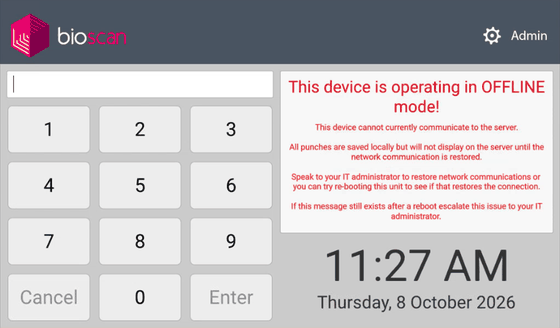
Restart the clock
A simple power cycle resolves a good portion of connectivity hiccups. To fully and properly power-cycle the device, follow the steps below:
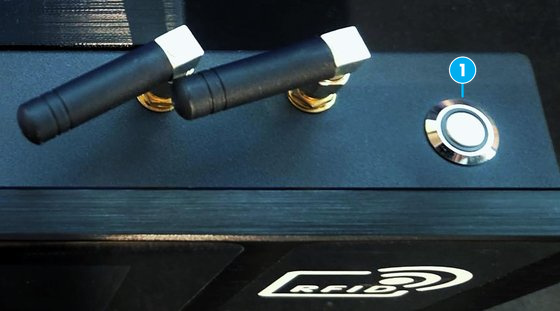
- Press and hold the Power Button for about a second. It is located on the top right-hand side of the unit, near the antennas.
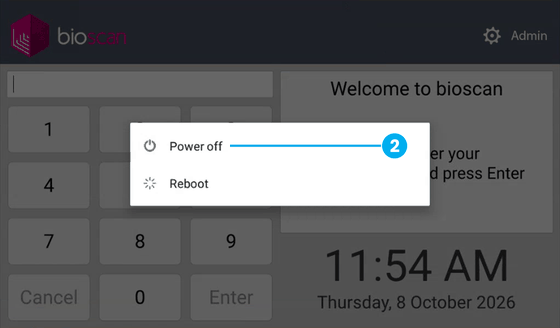
- From the two options displayed, select Power off.
-
Wait until the unit turns off completely. You'll notice the screen change to black.
-
Cut the power completely at the wall by either flicking the power switch (preferred) or unplugging the power adapter from the wall (not the clock).
-
Wait 5 seconds.
-
Restore power and let the unit boot.
Because of the clock's hardware, a soft reboot won't clear every connectivity issue. We highly recommend powering the clock off and then cutting the power at the wall for a few seconds, so it can restart completely. Also, we'd prefer it if power to the clock was disconnected from the wall, rather than unplugging the cable from the clock itself. Leaving the cable connected helps protect the power connector and keeps the clock in good working order.
While the clock boots you may see OFFLINE on the screen for a few seconds while the clock reconnects. This is normal. If the message remains, continue with the steps below.
Check the physical connection
If the clock is wired, it's worth carefully unplugging and reseating the network cable to test. Sometimes replacing the cable with a known good one fixes connectivity issues. The Ethernet port on the bioscan 817 has no status lights, so there's no link light to check. To rule out the data point itself, plug a laptop with its WiFi turned off into the same data point and check that it gets a network connection.
Check that the data point the clock is plugged into has been patched to an active switch port. A data point that hasn't been patched, or is patched to a port that's switched off or disabled, will leave the clock offline. If the clock is new, check this was completed when the cabling was installed.
If it's on WiFi, confirm the signal strength is good (not just "connected but weak") and that it is connected to a 2.4 GHz network, because the clock doesn't support 5 GHz. You can check your WiFi connection and settings by following our network guide.
If the clock connects over a mobile SIM, check with your mobile provider that the account is active and the data plan hasn't run out. An expired or used-up plan will leave the clock offline.
Try switching connection types
If the clock is currently on WiFi, try plugging in an Ethernet cable temporarily (or vice versa). This helps us tell whether the issue is specific to the WiFi network or a broader server or firewall issue. You can configure the network connection and settings by following our network guide.
Another alternative is to set up a hotspot on your personal mobile device and connect the clock to it over WiFi. Unplug the Ethernet cable from the clock first, because the clock uses Ethernet in preference to WiFi when both are connected. Connecting over the hotspot takes the clock off your local network, so if it comes online, the issue is likely with your network rather than the clock's settings.
Verify outbound port 443 isn't blocked
This step is a bit technical. If you're not the person who looks after your network, pass it on to your IT contact.
The clock connects to our server using HTTPS, the same secure, encrypted connection your bank uses, over port 443. If your firewall, router or web filtering has changed recently, it may be blocking that connection. Ask whoever manages your network to confirm that outbound traffic on port 443 is allowed from the clock.
Check the diagnostics screen
The diagnostics screen shows what the clock can see. To open it, tap the bioscan logo on the top left of the screen.

IP address
A valid address (for example, 192.168.1.25) means the clock is connected to your network. On a 4G SIM, the clock shows the mobile connection's WAN IP in the same format. If the brackets are empty, the network hasn't given the clock an address, so check the cable or WiFi connection first.
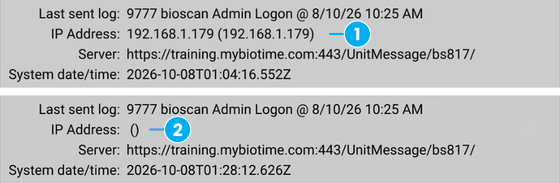
On Ethernet or WiFi, your IT team can use this address to find the clock on your network, so pass it on if they ask.
Technical note for your IT contact: if the clock uses a static IP, make sure that address is excluded from the DHCP range. Two devices with the same address will cause the connection to drop.
Date and time
The date and time on the diagnostics screen might be shown in universal time (UTC), so they can look 8, 10 or 12 hours out from local time. That's expected.
What you're looking for is a date or time that is out significantly, as that can stop the clock connecting securely to the server. If it looks wrong, see the network guide for how to check the time sync and time zone settings.

Still offline?
If the clock is still offline after working through the steps above, please take a photo of the diagnostics screen and send it to the biotime helpdesk team member you are in contact with. The Unit and Serial number tell us which clock you are talking about, and the rest of the screen gives the Support team a lot of useful information straight away.
Please also let us know if anything changed around the time this started: a new router, firewall rule, ISP, or network reconfiguration. That context really helps us pinpoint the cause quickly.