
The Exceptions panel is a visual tool to identify and address unusual occurrences at a glance. It shows time card exceptions for the period you choose, and you can acknowledge them from the panel without opening each timesheet.
Managers use it to find what needs attention before a timesheet can be reviewed. Exceptions fall into three groups:
Absenteeism, when an employee is rostered to work but doesn't clock on or have leave submitted.
Time tracking issues, such as missing punches, early or late arrivals and departures, short or long breaks, or clocking outside a geofence on mybiotime mobile.
Roster condition warnings, when a rostered shift conflicts with the requirements set for it.
Every Missing In, Missing Out and Absent exception must be addressed before a manager can review lock the timesheet.
Why use the Exceptions panel
Catch absences
See who was rostered but did not clock on or have leave submitted.
Fix punch issues
Spot missing punches, irregular hours and clocking outside a geofence.
Review faster
Acknowledge exceptions here, and open a timesheet only when it needs a fix.
What you can click
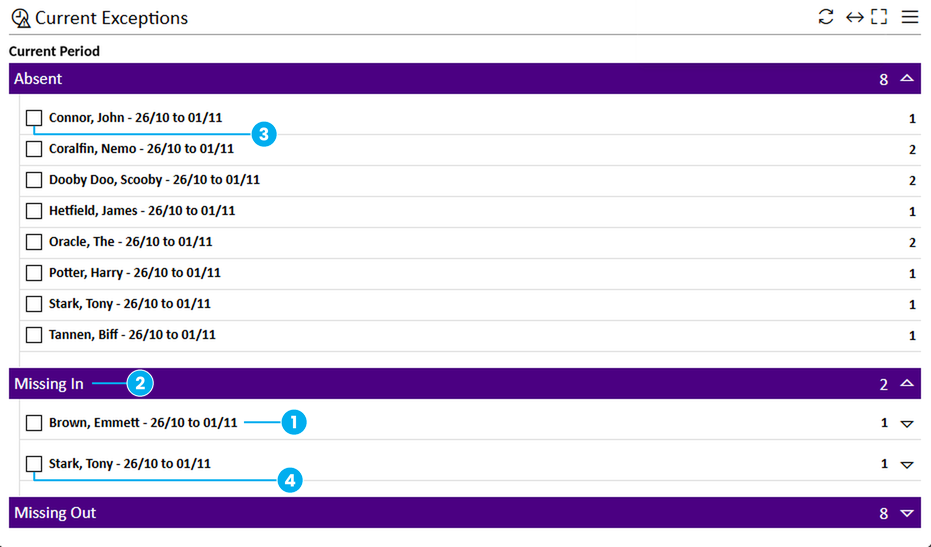
- An employee's name opens their timesheet or roster, depending on the exception, in a new tab.
- An exception name, such as Missing In, opens a list of all related exceptions for the period, in a new tab.
- The checkbox next to an employee under Absent opens a dialog to manage their absence for the period. It is ideal for sick leave.
- The checkbox next to an employee under any other exception acknowledges it. Expand the row to acknowledge one date at a time.
Clicking a punch outside the geofence opens a map showing where it was made.
Every panel also has refresh, expand, maximize and menu tools in its top right corner. See Tools on every panel.
Setup tips
- Use more than one panel. Each panel keeps its own exception types, so you can have a morning check with only the exceptions that must be addressed, and a second, perhaps on another dashboard, with the ones payroll cares about, such as truancy or roster conditions not met.
- Choose the Period for the task. Use Current Period for daily checks, and Previous Period for a final check before you review lock the timesheet. Each panel has its own Period, so you could keep one panel on each.
- Choose which exception types to show. Start with Missing In, Missing Out and Absent, since they must be cleared before a timesheet can be review locked. Add No Roster to catch work on a day with no roster, and the roster warnings if you use the panel to check rosters.
- Group larger teams with Group By, for example by department, location or award group. Global filters can change what is shown first.
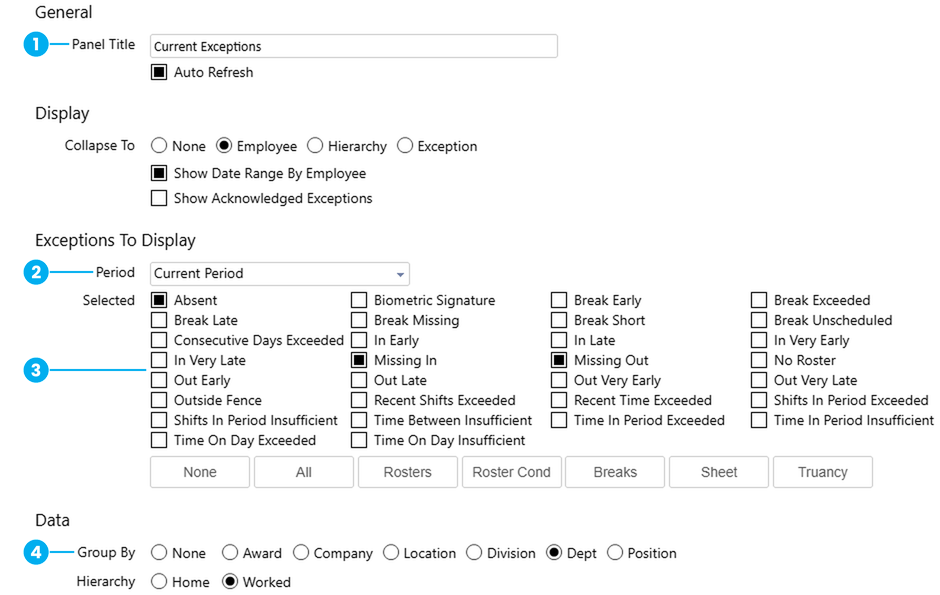
Turn on Missing In, Missing Out and Absent first. They must be addressed before a timesheet can be review locked, so they are the ones every business needs.
FAQ
Why am I seeing so many exceptions?
The panel only displays exceptions. Which ones are raised, and how many minutes trigger them, is set in each employee's award group, so the same codes can show up for staff they don't suit. For example, a salary award group, where what matters is that the hours are made up, rarely needs the early and late arrival codes that suit wages. If one of your award groups raises more than your team can act on, contact the biotime team. Tell us which exceptions you don't need, or how many minutes should trigger them, and we will adjust the award group to suit how you run. See Rosters, Grace, Rounding & Exceptions for how they work. Until then, you can hide exception types in the panel's settings, although we recommend at least keeping Missing In, Missing Out and Absent visible.
Can I show exceptions for only some employees?
Yes, by company structure. In the panel's settings, use Filters (Home and Worked) to choose the levels of your company structure to include, such as a location or department. The panel can't filter by award group, but Group By can sort it by award group, so each group's exceptions sit together. A global filter narrows who you see across biotime, not just in this panel, so use it with care.