
Shows time segments from the timesheet that need, or have needed approval before they are paid to employees. You can approve or decline them from the panel without opening the timesheet.
Managers use it to approve or decline time that needs their sign-off. Think of it as a to-do list: with Include Approved and Include Declined cleared, items drop off as you action them. Typical items are:
Overtime, when it's been set to require approval.
Allowances, such as a meal break.
Manual adjustments, such as kilometres added to a timesheet from mybiotime mobile.
Punches outside a geofence, where the award requires approval before paying.
Every unreviewed segment must be approved or declined before a manager can review lock the timesheet. Once the timesheet is review locked, its segments leave the panel.
Why use the Approval panel
Approve in one place
Approve or decline time without opening each timesheet.
Jump to the detail
Click an employee to open their timesheet, or a pay code to see everyone with that approval waiting.
Keep it manageable
Hide approved segments and group by location or department, so large teams stay clear.
What you can click
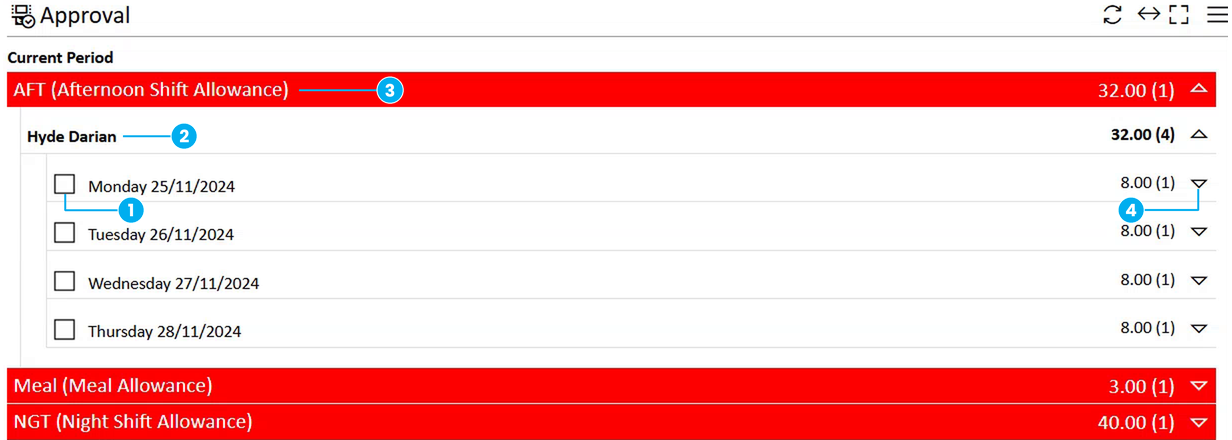
- The tick box next to a date or a time segment opens a small menu. Choose the tick to approve or the cross to decline. A date applies your choice to every segment on that day.
- An employee's name opens their timesheet in a new tab. A warning icon beside it means they still have unreviewed segments. It shows only when Include Approved or Include Declined is on.
- A pay code name opens a list of the employees shown under it, in a new tab.
- The arrows expand or collapse a pay code, an employee or a date, and so does clicking anywhere on its row.
Every panel also has refresh, expand, maximize and menu tools in its top right corner. See Tools on every panel.
Refresh the panel (the refresh icon or F5) when you come back from another tab or window. It refreshes itself only about every 15 minutes, and only when Auto Refresh is on, so what you see can be out of date.
Setup tips
- Choose how much starts expanded with Collapse To. Pick Paycode for a short list, or None to see every time segment straight away.
- Group employees with Group By in larger businesses. Choose a company structure level, such as location or department, or Award. The level names are your own.
- Turn on Breakdown By Paycode And Rule only when the approval rules are complicated. It splits each pay code into one row per rule, which can overwhelm the panel.
- Show only unreviewed segments by clearing Include Approved and Include Declined. Both are on by default for a new panel.
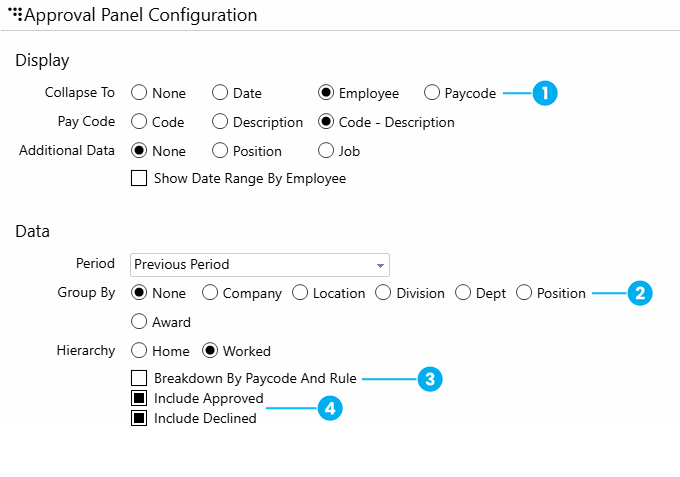
Consider two dashboards, one for the current period and one for the previous period. Period is set per panel, and a new panel starts on Previous Period.