
Work Patterns
A Work Pattern is a repeating cycle of contracted hours per day. It tells biotime how much an employee is expected to work on any given date — not when those hours fall, and not which shifts they cover.
Think of it as the answer to “what is this person contracted to do in a normal cycle”:
38 hours a week: 7 hours 36 minutes, Monday to Friday.
A nine-day fortnight: 8 hours 30 minutes a day, with every second Friday off.
Part-time: 4 hours on Tuesdays and Thursdays, nothing on the rest.
A pattern doesn’t do anything on its own. Your award rules read it — commonly for overtime after contracted hours, premiums, public holiday entitlement and time off. Which rules read it, and how, is set up with the biotime team when your award is configured. So if you have Work Patterns, keeping their hours accurate is what keeps those rules right.
On this page
What a Work Pattern does
Depending on how your rules are configured, a pattern can be used to:
1
Set the contracted-hours baseline
Rules that pay after contracted hours need a figure to work from. The pattern supplies it, per employee, per day.
2
Decide public holiday entitlement
biotime can use the pattern to work out whether someone would normally have worked that day, so part-timers and rotating staff are handled without a manual check.
3
Cover long rotations
A week, a nine-day fortnight, or a four-week, four-week, five-week rotation — the cycle repeats for as long as it’s assigned.
Work Pattern vs. Master Roster
| Tool | What it defines | When you use it |
|---|---|---|
| Work Pattern | Contracted hours per day — a number, with no times attached. | As a reference for pay and award rules. |
| Master Roster | Actual shifts — start times, finish times, breaks, positions and jobs. | To roster people onto real shifts on real dates. |
| Everyday roster Planner / Employee Roster | The shifts on real calendar dates for real employees. | For day-to-day changes, swaps and one-off adjustments. |
A Work Pattern doesn’t roster anyone — building one puts no shifts anywhere. The two aren’t alternatives, though: an employee can be rostered from a Master Roster while a Work Pattern supplies the contracted-hours figure their pay rules read.
Building a Work Pattern
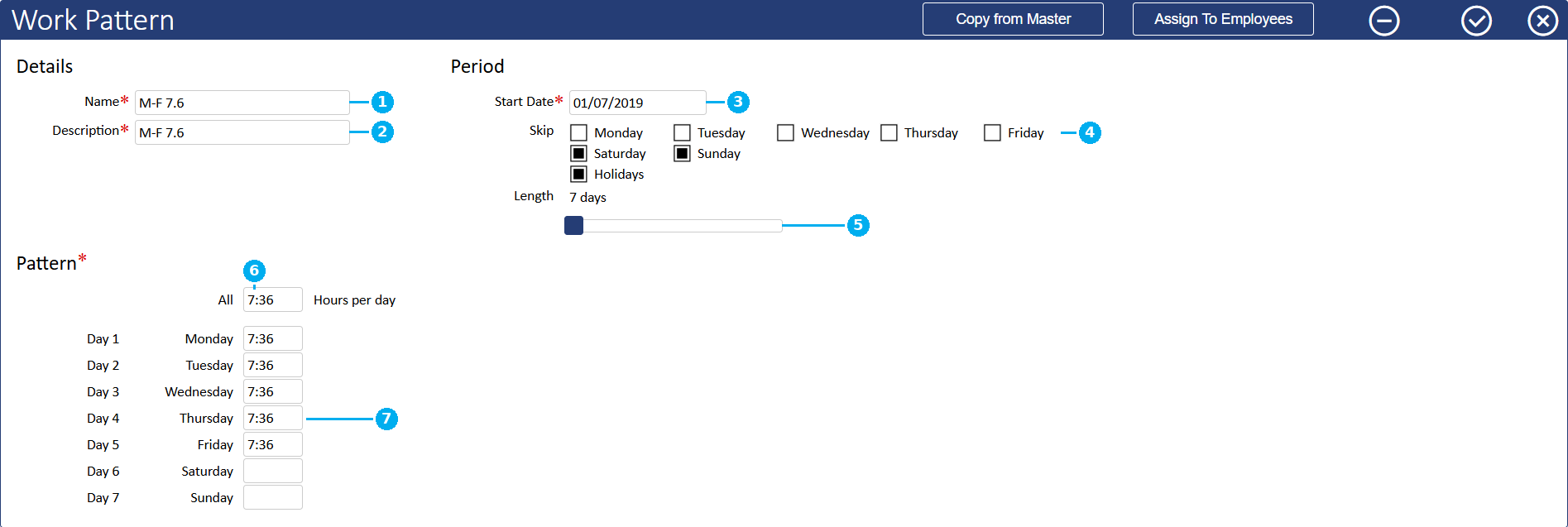
- Go to Configuration → Rosters, open the Work Patterns tab and click the +.
- Give it a Name and Description — both required, and the name must be unique. Name it for the arrangement rather than the person: “Nine-day fortnight”, not “Sam’s hours”.
- Set the Start Date. Day 1 of the cycle falls on this date, and the pattern doesn’t apply before it, so set it far enough back to cover the periods you need.
- Set the Length. The slider runs from 5 to 168 days and defaults to 7. Match it to how the arrangement repeats — a nine-day fortnight is a 14-day pattern, not a 9-day one.
- Tick any days under Skip that shouldn’t carry hours, and tick Holidays if public holidays fall outside the contracted cycle.
- Type a figure into the All box to fill every day that isn’t skipped, then adjust the individual days that differ. Do the Skip ticks before the fine-tuning — changing one refills the whole grid from the All box and resets the days you’ve adjusted.
- Check each day reads the way you expect, then save.
Important: Set the Start Date to day one of a pay period. Day 1 of the cycle lands on whatever date you give it. Anchor a Monday-start pattern to a Tuesday and every day shifts with it, putting the rest days in the wrong place.
Copying from a Master Roster
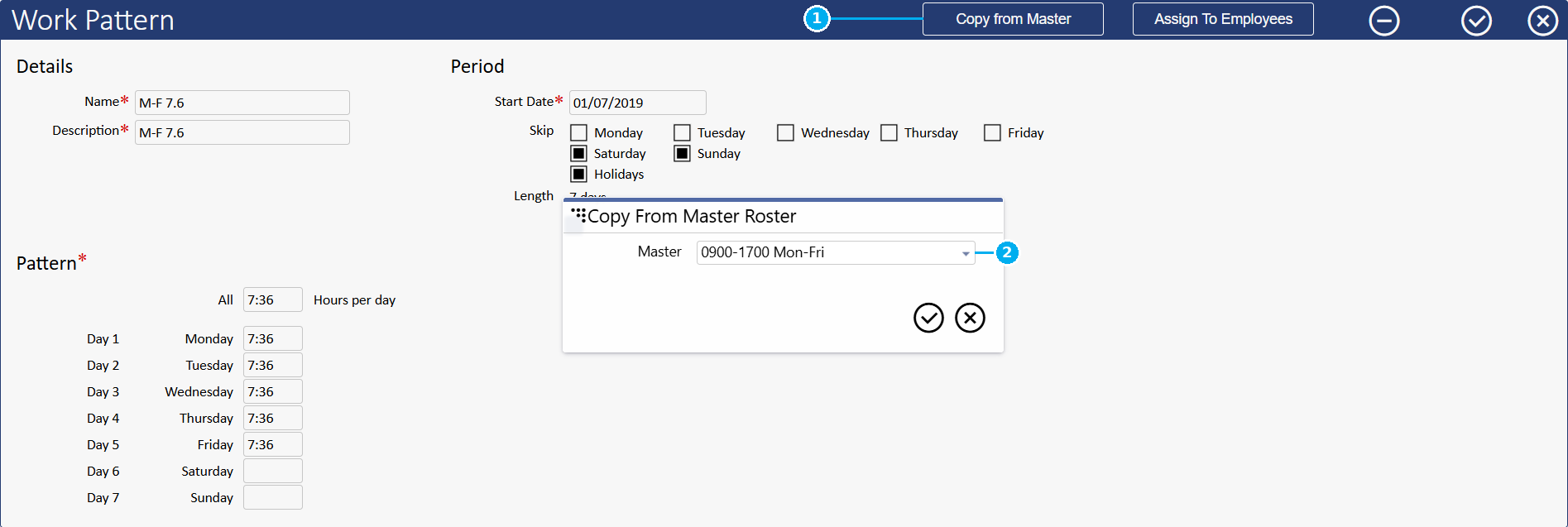
If the hours already exist as a rotation, Copy from Master fills the grid from a Master Roster and sets the length to match. It’s a snapshot — later changes to that roster don’t flow through, so you’ll need to copy it again.
Assigning a Work Pattern
A pattern does nothing until it’s applied. Set it for a whole award, or for individual employees.
For everyone on an award
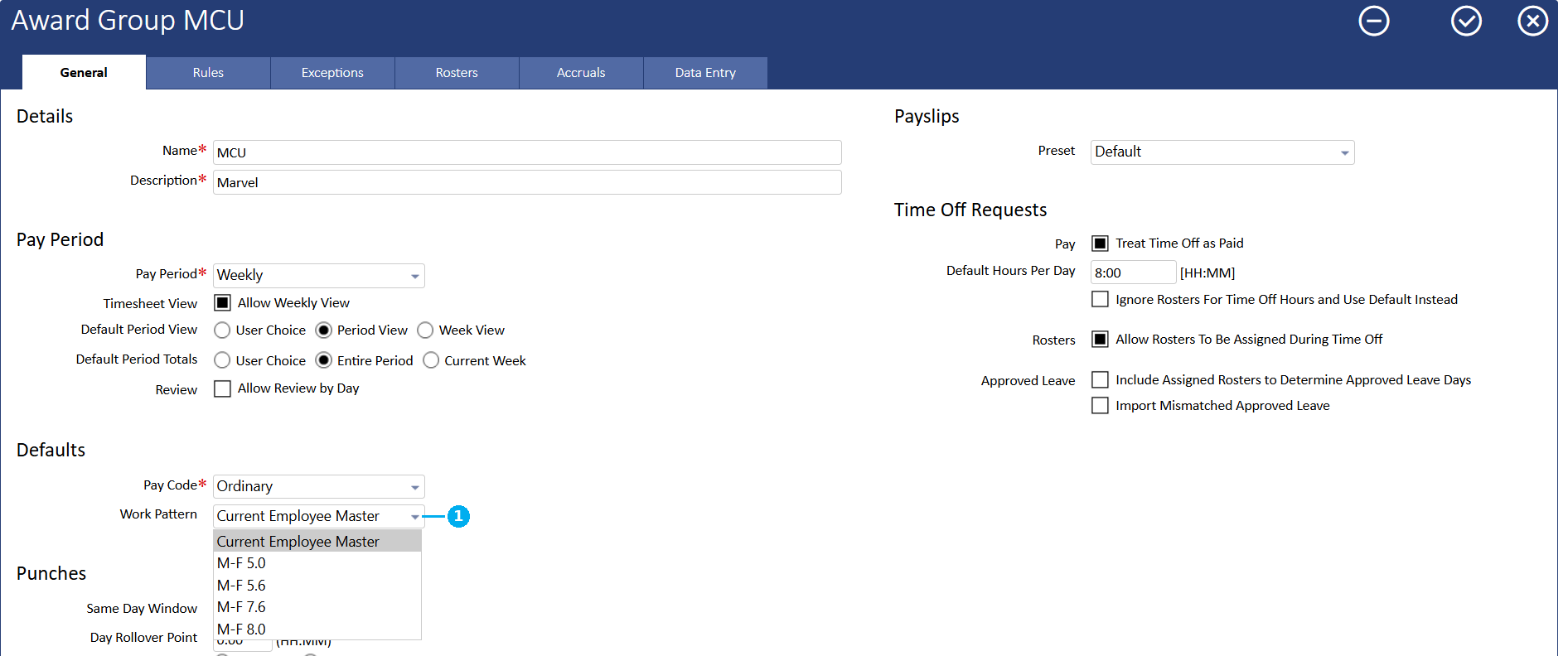
On the award, under Defaults → Work Pattern, pick a named pattern and everyone on that award uses it. Current Employee Master uses each employee’s own master roster instead.
For a group of employees
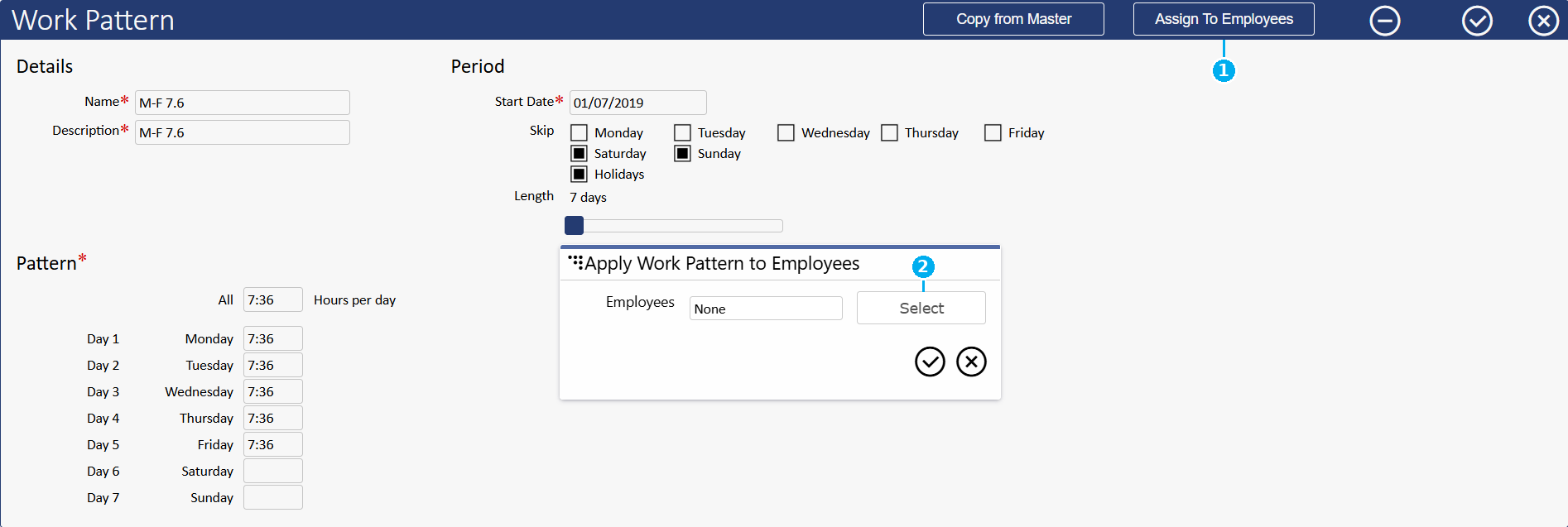
- Open the saved Work Pattern and click Assign To Employees.
- In Apply Work Pattern to Employees, click Select, choose the employees, then confirm. The picker’s Pattern column shows what each employee is on before you change it.
Important: Your selection replaces the list rather than adding to it — anyone already on the pattern who isn’t in your selection comes off it. The picker opens with the current employees ticked, so add to that selection instead of starting fresh.
For one employee
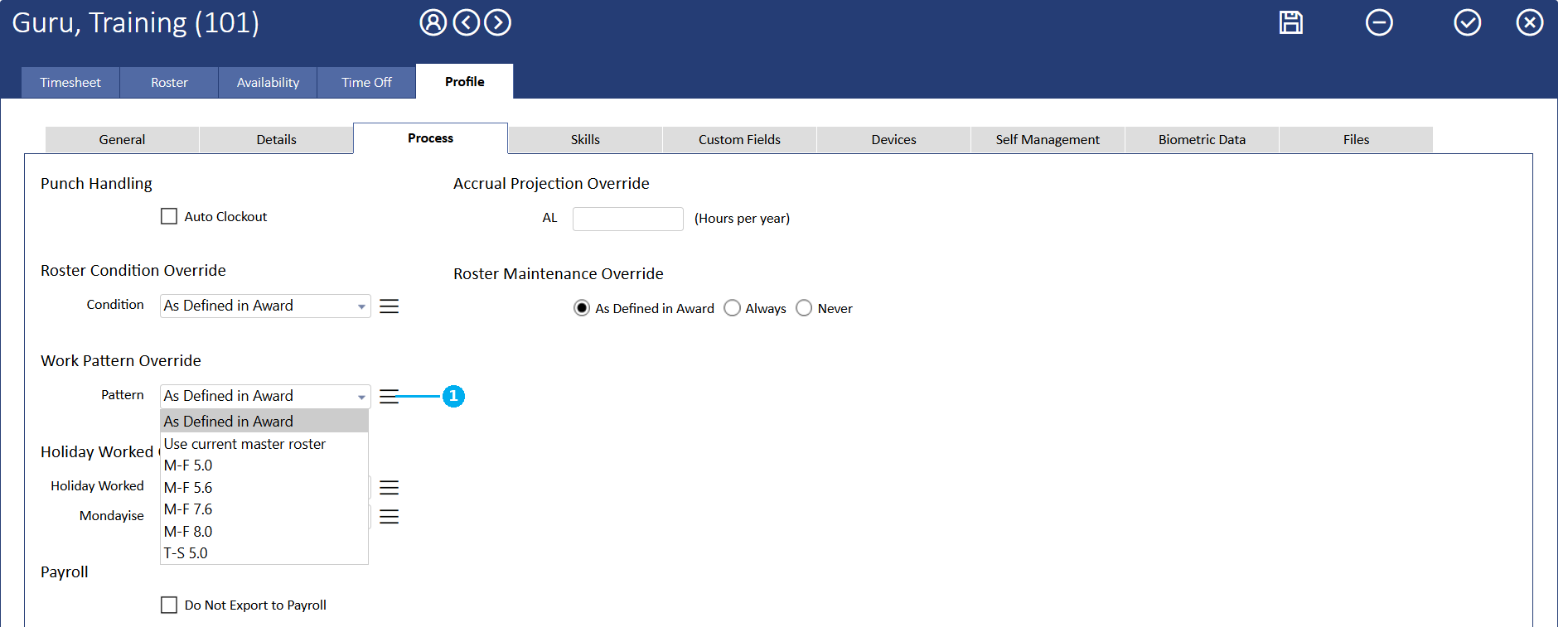
On the employee record, set Work Pattern Override → Pattern: a named pattern, As Defined in Award to follow the award, or Use current master roster to use their rostered shifts. This is the safer route for a single change.
Tips and good practice
- Set the Start Date to day one of a pay period. Day 1 of the cycle lands on whatever date you give it — anchor a Monday-start pattern to a Tuesday and every day shifts with it.
- Tick Skip and Holidays before you fine-tune individual days. Changing a Skip tick refills the whole grid from the All box, resetting any per-day adjustments you’ve already made.
- Name patterns for the arrangement, not the person — e.g. “Nine-day fortnight,” not “Sam’s hours.” Patterns are meant to be shared, and names sort alphabetically in the list.
- Treat Copy from Master as a one-time snapshot. It won’t stay in sync with the roster it came from, so copy again if that roster changes.
- Check the new pattern’s Start Date before moving someone onto it. The switch recalculates their open history from that date, and anything earlier drops to zero hours.
FAQ
If I change a Work Pattern, does it affect pay periods I’ve already done?
Open ones, yes — back as far as the Start Date. Anything locked or reviewed keeps the figures it already holds, so periods you’ve signed off are safe unless you unlock them again.
Someone’s hours have changed. Should I build them a new pattern?
Usually not. An employee is linked to one pattern at a time, and that link carries no dates. Move them to a new pattern and their open history recalculates against the new Start Date, so anything before it drops to zero hours.
Adjust the pattern they’re already on, or give the new one a Start Date early enough to cover the history you need.
What happens on a public holiday?
That depends on the Holidays tick under Skip. Tick it and the pattern gives the employee no contracted hours on a public holiday. Leave it unticked and the holiday counts like any other day in the cycle.
Can an employee be on both a Work Pattern and a Master Roster?
Yes. Roster them from a Master Roster as normal. Then, under Work Pattern Override, choose what supplies their contracted hours: a named pattern, or Use current master roster to use their rostered shifts.
Is there a limit to how long a cycle can be?
The length runs from 5 days to 168 days, so long rotations fit comfortably. A four-week, four-week, five-week rotation comes to 91 days — well inside the maximum.
What’s the difference between a Work Pattern and a Master Roster?
A Work Pattern supplies the contracted hours per day that pay and award rules read — a number, with no shift times attached. A Master Roster defines the actual shifts employees work: start and finish times, breaks, positions and jobs. See Master Roster Templates for how to build and assign one.
Need a hand?
Our support team knows biotime inside out. Send us a message and we’ll get back to you, usually within one business day.
Prefer to call? AU 1300 139 460 · NZ 0800 111 438
From overseas: +61 7 5613 2700 · +64 9 820 3444
Monday to Friday, 8:30am – 5:00pm (AEST/NZST)