
Restaging activates the employee's staging key again so they can reconfigure the mybiotime app, for example on a new phone, or after their phone or the app has been reset. While similar, it's different from adding an employee to a device or removing them.
An employee has a new phone and needs mybiotime set up on it.
An employee's phone has been lost, reset or replaced.
The app isn't working as it should, and starting fresh is the next thing to try.
Before you start
biotime can email the staging details to the employee if they have an email address on their profile. It can also text them if it's been configured for SMS. If neither suits, you can pass the details on, outside the biotime platform.
Restaging an employee
-
Go to Configuration → Devices & Units, then click the device the employee is assigned to. It will be a device with the type Single User, and there may be more than one.
 1 A Single User device
- In Assignments, click the employee you want to restage. You can pick more than one. If the employee isn't on the list yet, click Add Employee(s), select them from the list and confirm. They get a staging key straight away, so skip step 3.
- Click Restage. A staging key appears next to each selected employee, in the Staging Key column.
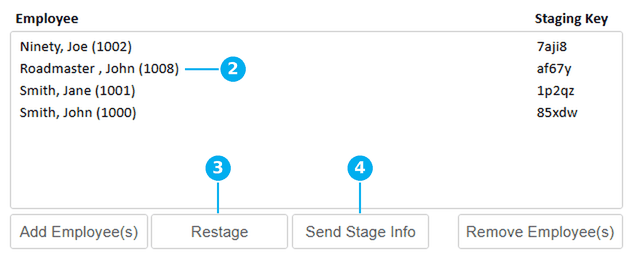
Removing an employee from a device ends their access to the mybiotime app. To set up an employee's new phone, we recommend using Restage over removing them.
- Select the employee again, then click Send Stage Info. biotime clears your selection after restaging or adding.
- In the Send Staging Information window, leave Only Notify Selected Employees ticked and click Email.
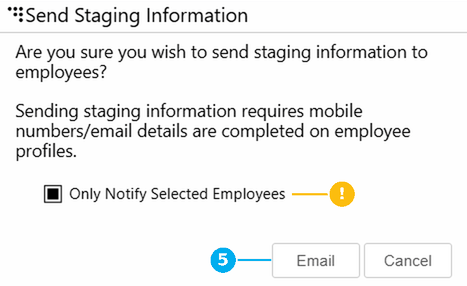
Email is the usual choice. If you've got SMS set up in biotime, texting works too.
Only Notify Selected Employees appears when you've selected employees. Ticked, biotime emails just them. Unticked, it emails everyone who still has a valid staging key.
What the employee does next
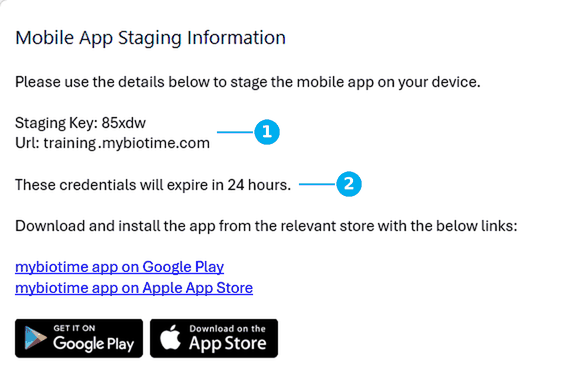
- The employee gets an email called Mobile App Staging Information. It contains their staging key and a web address.
- If mybiotime isn't on their phone yet, they install it from Google Play or the App Store. They then use the details in the email to set up the app. Ask them to do this within 24 hours, as the email says.
If the staging email doesn't send
If anyone you've selected doesn't have an email address on their profile, biotime shows Could not send staging information, and the email doesn't go to anyone, even the employees whose details are fine.
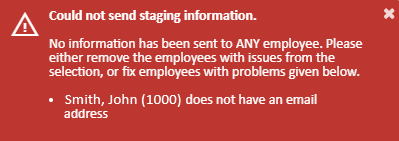
The message lists the employees biotime couldn't email because they have no email address on their profile. Open each profile in a new tab so you don't lose this screen, add the address and save, then click Email again. Not ready to fix them? Take them out of your selection and send again, and biotime will email all the employees it can.
FAQ
The staging key has expired. What now?
The time limit starts when you click Restage, not when the email is sent, so sending the email again doesn't give them longer. Restage the employee again, then send the staging information again. They'll get a new email, and the staging key will work again.
Still stuck?
Check that the staging email isn't in the employee's junk folder. If they still can't set up the app, reach out to support. Tell us who you restaged, which device they're on, and whether the staging email arrived. If biotime showed a message at any point, include that too.