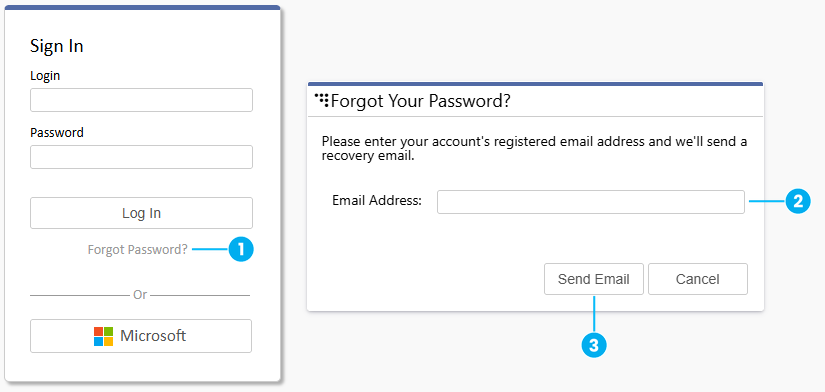
If a user can't log in to biotime, you can set a temporary password for them on their Edit User screen. They choose their own password the next time they log in.
Before you start
You'll need a way to pass the temporary password to the user, such as email.
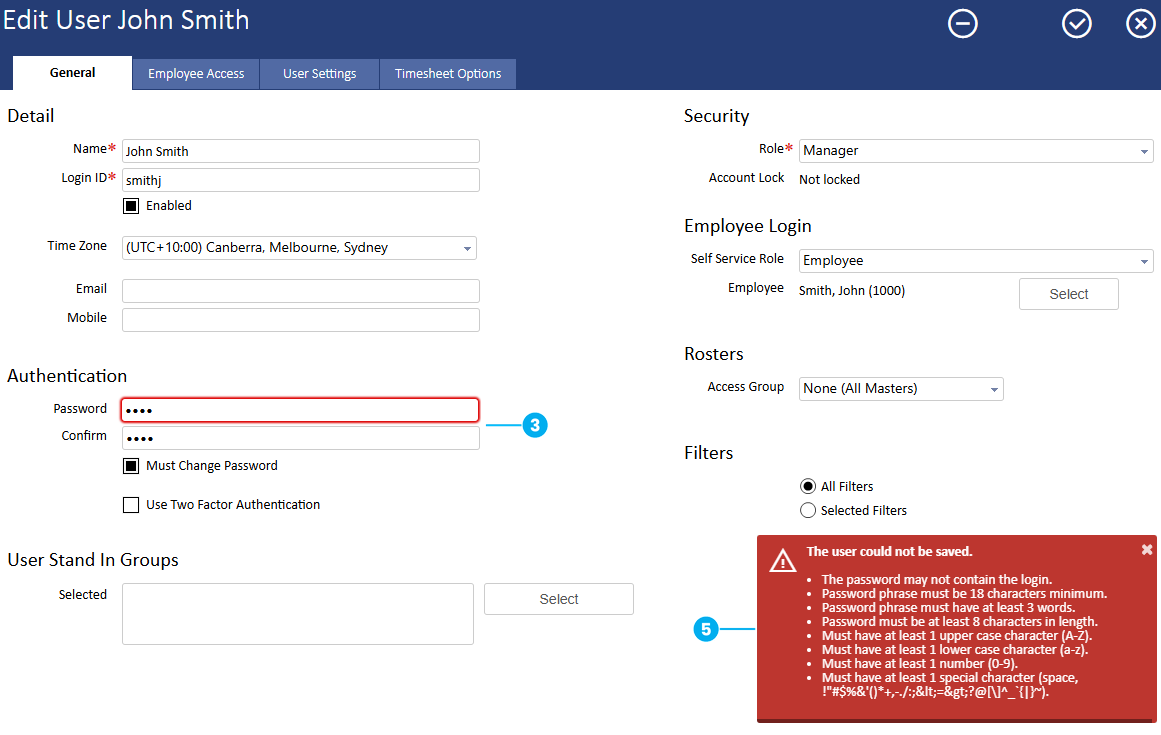
For security, biotime checks the new password against a set of rules, and the rules that apply can vary. The password may need to:
- not contain the user's login
- be at least 8 characters long
- include at least one upper case letter (A-Z)
- include at least one lower case letter (a-z)
- include at least one number (0-9)
- include at least one special character, such as ! # $ % & or @
Set a temporary password
-
Go to Configuration → Users & Roles.
-
On the Roles / User tab, find the user in the Users list and click their name. The Edit User screen opens.
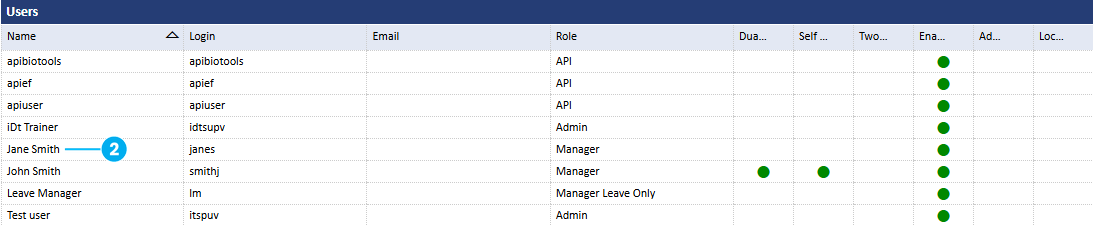 2 The user to click
-
Under Authentication, enter the temporary password in Password, then again in Confirm.
-
Make sure Must Change Password is ticked.
-
Click the tick in the top-right corner to save and close.
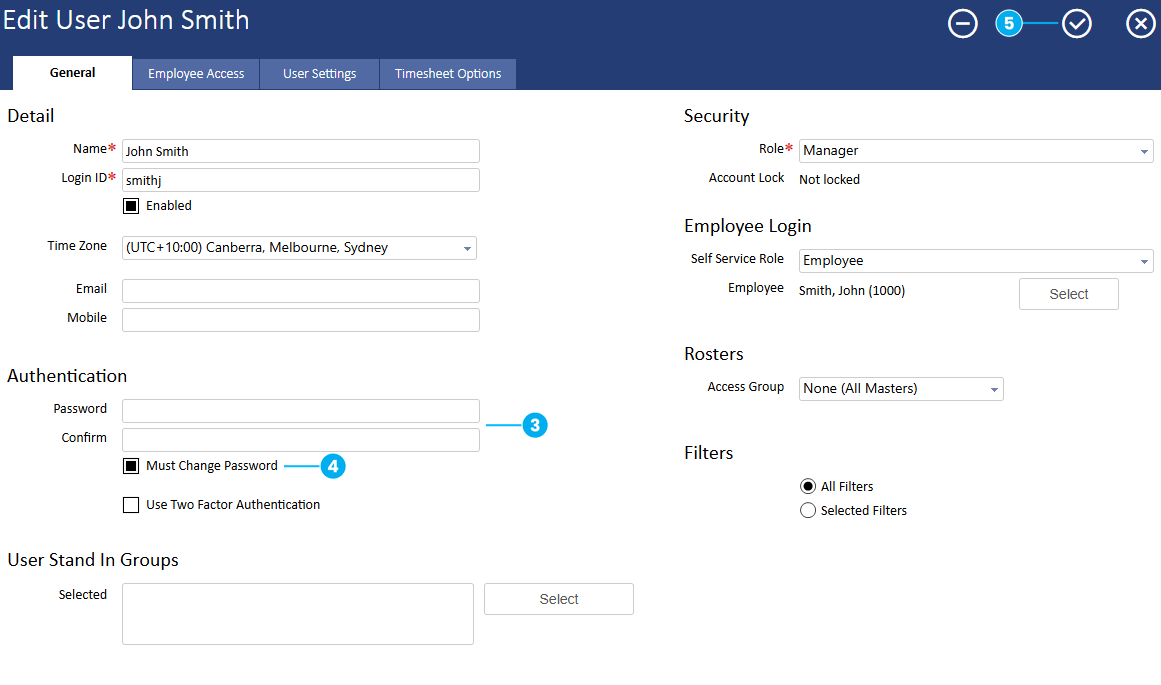 3 The temporary password, entered twice4 Must Change Password ticked5 Save and close
-
Let the user know their temporary password.
If the password doesn't meet the requirements, biotime shows The user could not be saved. with a list of the rules. Change the password to meet every rule, then save again.
What the user does next
- The user logs in with their login and the temporary password.
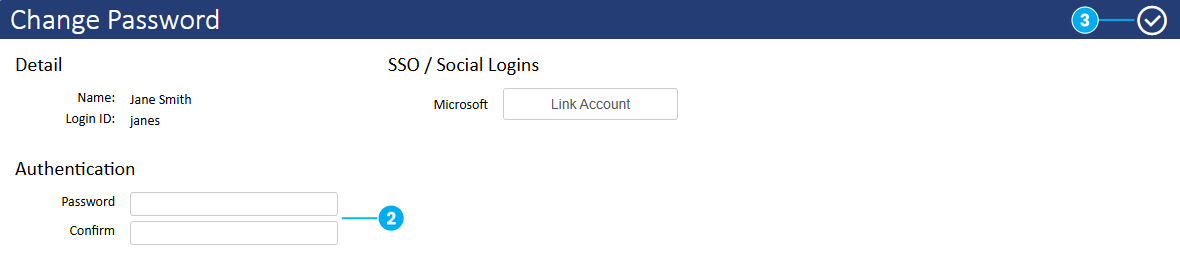
- biotime opens the Change Password screen. The user enters a new password in Password and Confirm.
- The user clicks the tick in the top-right corner to save and close.
Users can reset their own password
- On the Sign In screen, the user clicks Forgot Password?.
- The user enters their registered email address.
- The user clicks Send Email. biotime sends them a recovery email.
This only works if their user has an email address associated with their biotime account.