
Managing Files lets you keep documents, such as licences, qualifications and medical certificates, with an employee's profile or timesheet, so they're easy to find. This guide covers both and shows you how to see them all in one place.
Before you start
You need permission in your role to add files to profiles and timesheets. If you can't add files, contact the biotime team.
Profile files
Profile files stay with the employee, such as a licence or qualification certificate. Each one can have an expiry date, so you can see at a glance what's current.
-
Go to Employee → Profile and open the employee's profile.
-
Click the Files tab. Any files already added are listed here.
-
To add a file, click the upload area on the right, or drag a file from your computer and drop it there. The upload area lists the file types biotime accepts.
-
The Please Select an Expiry Date window opens when you add a file. If a file has no date yet, click Set Expiry Date in the Expire column to open it.
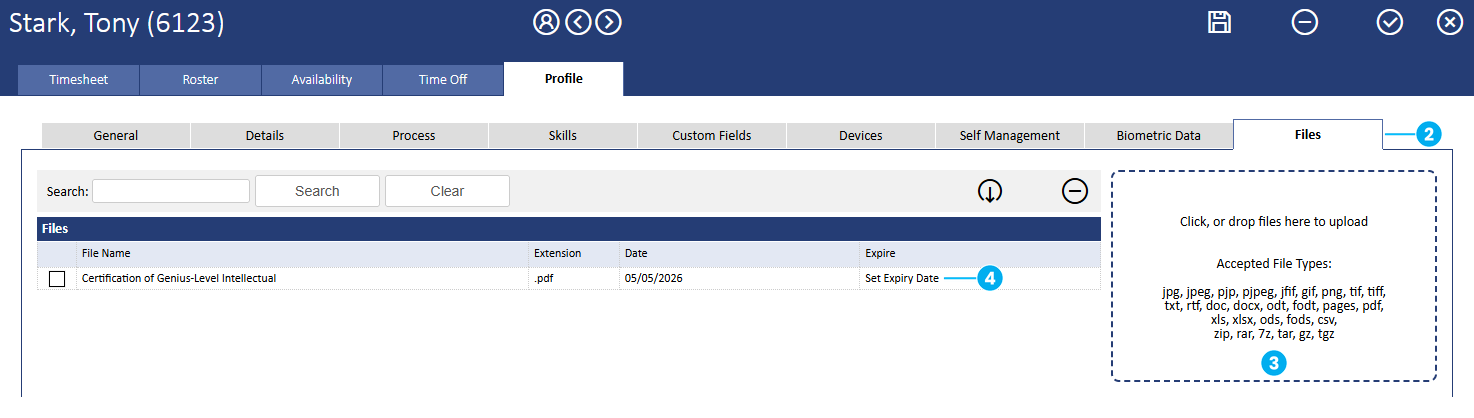 2 The Files tab3 The upload area4 A file with no expiry date yet
-
In the Please Select an Expiry Date window, enter the date.
-
Click the tick to confirm. biotime shows File expiry has been updated.
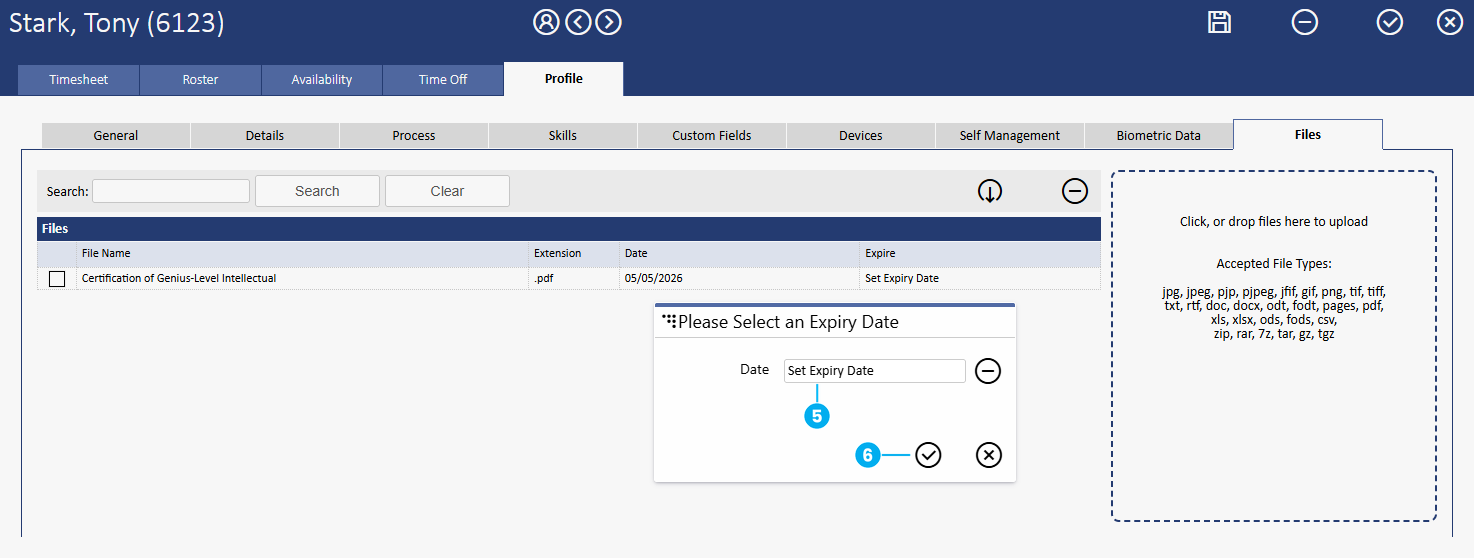 5 The expiry date6 Confirm the date
The list shows each file's File Name, Extension (such as .pdf), Date and Expire date. Use Search to find a file and Clear to reset the search. To download or remove a file, tick it, then click the download or remove icon above the list.
We recommend setting an expiry date on each profile file when you add it, so it's easy to see at a glance which files are current.
Timesheet files
Timesheet files are attached to a day on the timesheet, such as a medical certificate for a day of sick leave. They appear in the Files List beside the timesheet.
-
Go to Employee → Timesheet and open the employee's timesheet.
-
On the right of the timesheet, find the Files List under Totals. If the panel is hidden, click the arrow on the divider to open it.
-
Click the menu icon in the Files List header to open the Select Files window.
 2 The Files List3 Its menu icon
-
Check the date in the box at the top right. It's today by default and is the day the file is attached to. Then click the upload area, or drop a file onto it. The file appears in the list with its Date, File Name and Extension.
-
To download or remove a file, tick it first.
-
Click the download icon to save a copy of the file.
-
To remove the file instead, click the remove icon. biotime asks you to confirm.
-
Click the close icon at the bottom right. The file now shows in the Files List.
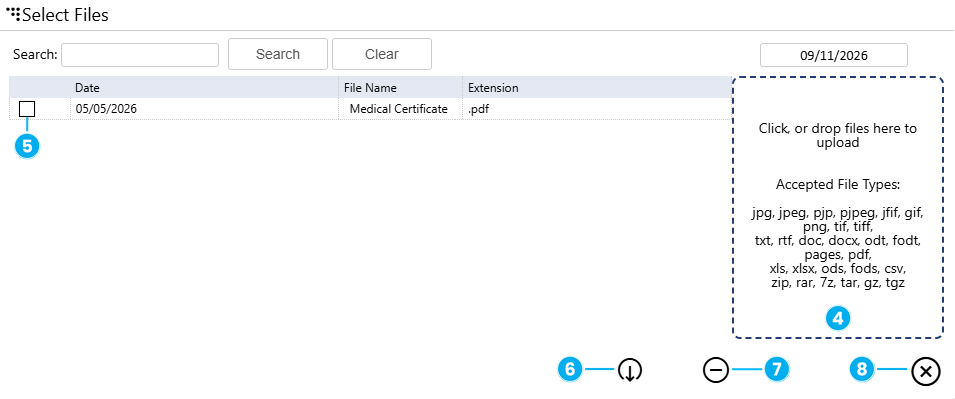 4 The upload area5 Tick a file6 Download7 Remove8 Close
You can add one file at a time, up to 128 MB, in most common formats, including images, PDFs, Word, Excel and text files, and zipped folders.
In the Select Files window, you can also search for a file.
See all files in one place
The Managing Files dashboard shows your employees' files in one place. Go to Home and open Managing Files.
Each File Management panel lists files by employee and date. In the example below:
- Open the panel menu to change what the panel shows.
- Timesheet files are listed under Timesheet.
- Profile files are listed under Profile.
Click a file name to open it in a new tab.
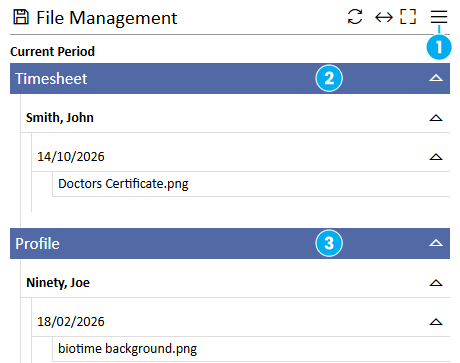
Change what a panel shows
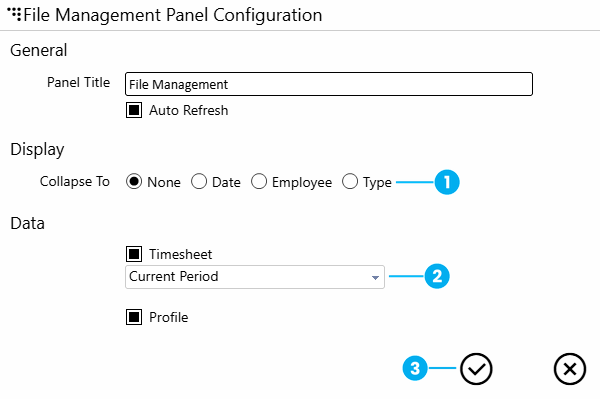
Open the panel menu and choose Settings. You can change the Panel Title, turn Auto Refresh on or off, and tick Timesheet, Profile or both under Data. Then:
- Collapse To sets how much of the list is open when the panel loads: every file (None), dates only (Date), employee names only (Employee), or the two headings only (Type).
- For timesheet files, choose the period the panel covers, such as Current Period or Previous Period.
- Click the tick to save.
You can set up more than one panel, for example one for profile files and one for the current period's timesheet files.
The settings every panel shares are covered in Panel settings.
Reports
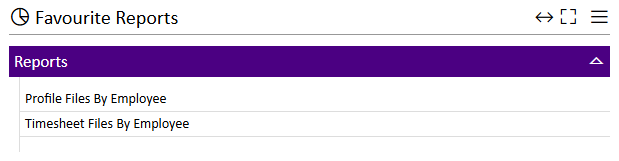
The Favourite Reports panel on the dashboard has two reports for files: Profile Files By Employee and Timesheet Files By Employee. Click a report name to open it. Its menu and settings work like any other panel.
FAQ
Which file types can I upload?
The upload area lists them. They include images, PDFs, Word, Excel and text files, and zipped folders.
Can I add more than one file at once?
In the Select Files window, no. Add one file at a time, then repeat for the next.
Why can't I see Timesheet or Profile on a panel?
Your role doesn't include that type of file. Contact the biotime team to change it.