

Enrolling Timeclock Users
Enrolling an employee on the bt505 adds them to the clock so they can identify themselves at every punch — by face, fingerprint, card or PIN. Think of it as setting up their profile on the clock itself: once one method is enrolled, they can start clocking in and out straight away. Since it needs the employee there in person, the best time to do it is during onboarding or induction — before their first rostered shift starts, so there’s nothing to hold up that first clock-in.
On this page
What enrolling does
1
Face
A photo of the employee’s face, captured by the camera at each punch. Nothing to carry — they just tap the clock’s punch button to begin.
2
Fingerprint
A scan of the employee’s finger, stored as a template on the clock. Quick to verify and nothing for the employee to carry or forget.
3
Card
An RFID card the employee swipes above the sensor. Good for employees who’d rather not use biometrics.
4
PIN
A 4-digit number the employee enters on the clock’s keypad. A reliable backup for anyone who’d rather not use a biometric method or card.
Face, fingerprint, card or PIN
| Method | How it identifies the employee | Good to know |
|---|---|---|
| Face | Camera captures their face, with a 3-second countdown before it takes the photo | Quick once it starts, though the employee still needs to tap the clock’s punch button to begin — its label depends on setup (Punch, Quick Punch, etc.), so it isn’t fully hands-free |
| Fingerprint | Employee places the same finger on the sensor three times | We recommend enrolling a second finger as a backup. The scan is stored as a template, not a photo — it can’t be reverse-engineered back into an image of the fingerprint |
| Card | Employee swipes their card above the sensor once | Quickest to enrol, but relies on the employee having their card on them |
| PIN | Employee enters a 4-digit PIN on the clock’s keypad | Only one PIN can be stored per employee at a time — enrolling a new one overwrites the old |
These aren’t exclusive — an employee just needs one method enrolled before they can clock in, and can have more than one if it suits how they work. Which methods a clock offers is controlled from that clock’s Authentication settings, so get in touch if you’d like the options at a site changed.
Enrolling a face
- On the bt505’s home screen, tap Admin on the bottom menu.
- Enter the Admin PIN when prompted.
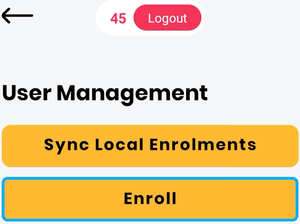
- Select User Management, then Enroll.
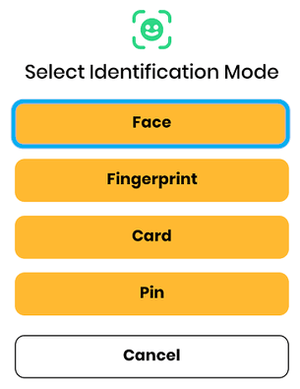
- Choose Face from the Select Identification Mode screen.
- Search for the employee by name or clock number, then select them from the list.
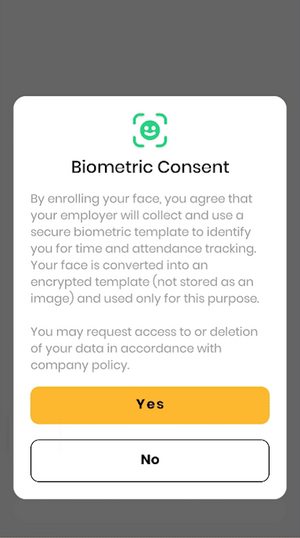
- The Biometric Consent screen appears. Have the employee read it, then tap Yes to continue — tapping No cancels the enrolment.
- Have the employee stand in front of the unit, keeping their face within the frame. Suggested distance is 30–100cm — close enough that their face fills most of the camera’s view, for the clearest capture.
- The clock counts down for 3 seconds, then takes the photo automatically.
- Wait for confirmation that the face was enrolled before moving on. The clock will ask if you’d like to enrol another face — repeat from step 5 to add a backup for the same employee, or start again for the next person.
- Once you’re finished, tap Logout in the top centre to close Admin mode.
Important: keep the face centred during the countdown — the 3-second delay gives the clock time to focus, so ask the employee to stay still and keep their face in frame until it captures.
Tips for a good face enrolment
- Fill the frame — it’s facial recognition, not full-body. Aim for the employee’s face taking up more than 75% of the camera’s view. Standing too far back, so the face only fills a small part of the frame, is the most common reason a face enrolment comes out poor.
- Stand close — roughly 30–100cm from the camera. Close enough to fill the frame, but still far enough that the whole face fits without cutting off the chin or forehead.
- Look at the camera, not down at the screen. A downward angle changes how the face is framed and can affect recognition later.
- Keep still through the 3-second countdown. Moving or turning away just before capture is the next most common reason an enrolment comes out poor.
- Look as you normally would when clocking in. Enrol the way the employee will usually appear at the clock — prescription glasses on, for example, if that’s how they normally look. Take off sunglasses, and make sure a cap or hood doesn’t shadow the face.
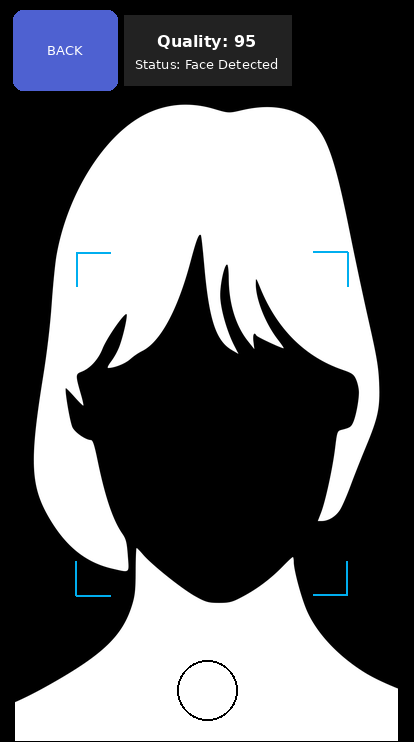
Ideal facial scan
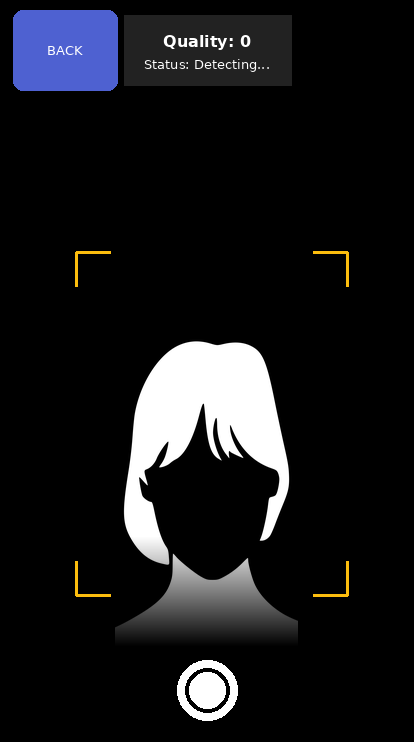
Too far from camera
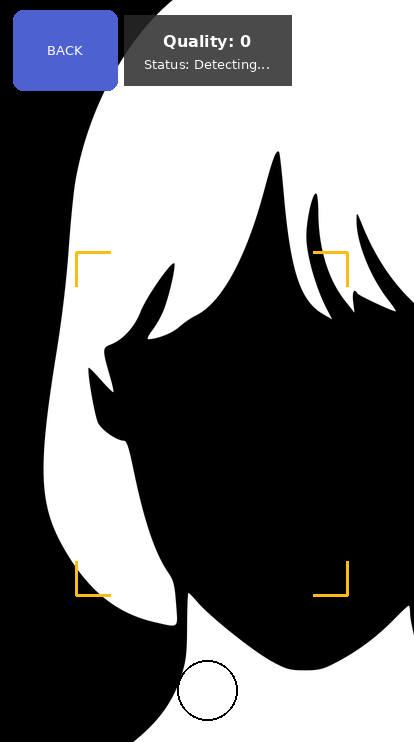
Too close / out of frame
Enrolling a fingerprint
- On the bt505’s home screen, tap Admin on the bottom menu.
- Enter the Admin PIN when prompted.
- Select User Management, then Enroll.
- Choose Fingerprint from the Select Identification Mode screen.
- Search for the employee by name or clock number, then select them from the list.
- Ask the employee to place the same finger on the sensor when prompted, then lift and place it again two more times — the clock scans it three times in total.
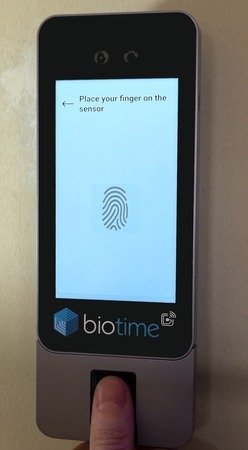
- Wait for the Enrolment success message before moving on — that’s your confirmation it worked.
- We recommend enrolling a second finger as a backup rather than relying on just one — repeat from step 5 with the same employee.
- Once you’re finished, tap Logout in the top centre to close Admin mode.
Tips for a good fingerprint enrolment
- Warm the finger, don’t wet it. Dry skin scans poorly — rubbing the finger against the palm adds natural oils, which works better than water.
- Use moderate, flat pressure. Too hard flattens the ridges, too light means they don’t register — a firm, even touch scans best.
- Pick a finger with clear, undamaged ridges. Index fingers work for most people, but a middle finger, ring finger or thumb is often better if it’s less scarred or easier for the employee to hold flat.
- Hold the finger still until prompted to remove it. Lifting off early or moving mid-scan is the most common reason an enrolment comes out poor.
- Enrol a second finger from the other hand. If the primary finger is later injured or bandaged, the employee still has a working backup.
Enrolling a card
- On the bt505’s home screen, tap Admin on the bottom menu.
- Enter the Admin PIN when prompted.
- Select User Management, then Enroll.
- Choose Card from the Select Identification Mode screen.
- Search for the employee by name or clock number, then select them from the list.
- Have the employee swipe their card against the sensor beneath the biotime logo when prompted — this is a different spot to the fingerprint sensor further down.
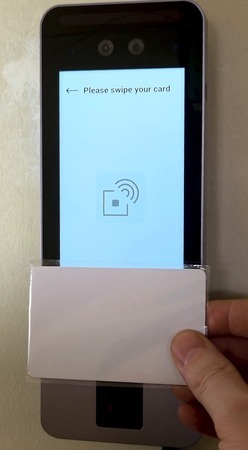
- Wait for the Enrolment success message before moving on — that’s your confirmation it worked.
- Once you’re finished, tap Logout in the top centre to close Admin mode.
Enrolling a PIN
- On the bt505’s home screen, tap Admin on the bottom menu.
- Enter the Admin PIN when prompted.
- Select User Management, then Enroll.
- Choose Pin from the Select Identification Mode screen.
- Search for the employee by name or clock number, then select them from the list.
- Enter a 4-digit PIN for the employee on the keypad, then tap Done.
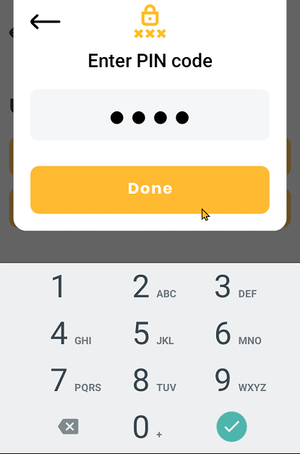
- There’s no confirmation message for a PIN — the clock returns straight to the Enroll screen once it’s saved.
- Only one PIN can be stored per employee at a time. If they already have one, entering a new PIN replaces it — there’s no way to keep a backup PIN the way you can with a second face or fingerprint.
- Once you’re finished, tap Logout in the top centre to close Admin mode.
Setting a PIN from an employee’s profile
A PIN can also be set or changed without visiting the clock, directly from the employee’s profile in biotime.
- Open the employee’s profile and go to the Devices tab.
- In the Access/Validation panel, enter or update the Pin field.
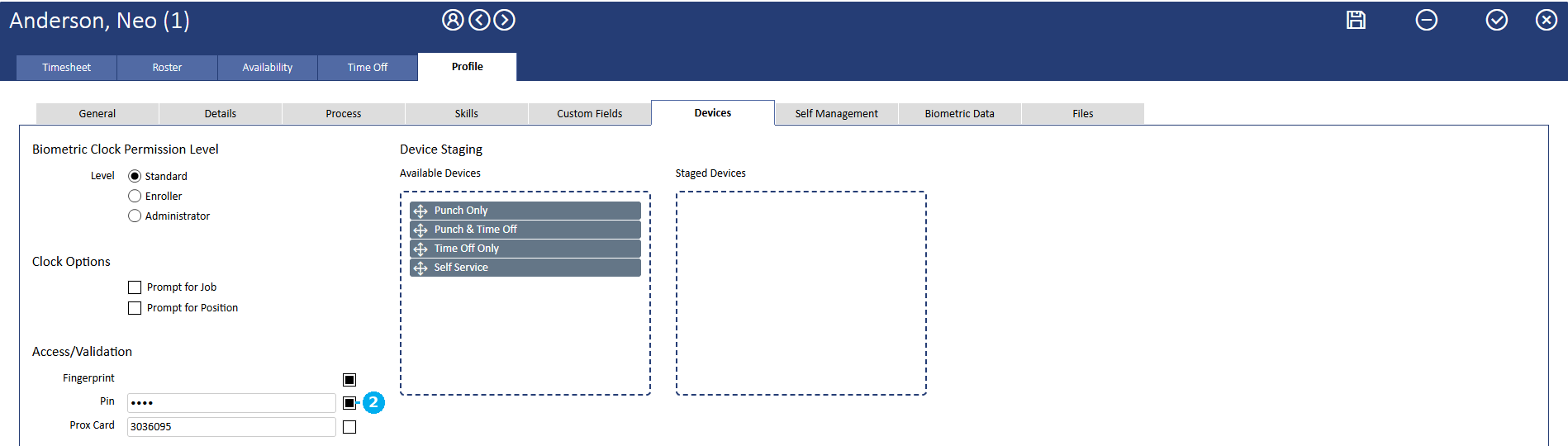
- Save the profile.
This pushes the PIN to the clock the same way enrolling one there does — handy when it’s easier to update from biotime than to walk someone through the steps at the bt505 itself.
FAQ
Why does the clock ask me to choose Face, Fingerprint, Card or PIN before enrolling?
Because the bt505 supports all four — you’re telling it which one to capture for this employee. Choose whichever they’ll use to clock in. Which options are actually available can differ by site, depending on how that clock’s Authentication settings are configured.
Can an employee be enrolled with more than one method?
Yes. Repeat the enrolling steps for the same employee with a different method, or a backup face or finger, whenever you need to. Card and PIN are the exception — only one of each can be stored per employee at a time, so enrolling a new card or PIN replaces the old one rather than adding a backup.
How many times does the clock scan a fingerprint?
Three placements of the same finger — but that’s only during enrolment. Once an employee’s set up, they just place their finger once to clock in, unless the clock asks them to try again.
Is one card swipe enough to enrol it?
Yes — a single swipe above the sensor captures the card.
What if I can’t find the employee when I search?
If you’re expecting them to already be in biotime, double-check the name spelling or try their clock number instead — name search only works for existing employees. For a new starter who hasn’t been added yet, name search won’t find them either: enter an unused clock number instead, and the clock will prompt you to add a new employee at the bottom of the results.
Why isn’t the clock recognising an employee after enrolling them?
Enrol a backup — a second face or finger — using the same steps, rather than troubleshooting the original enrolment.
Does every bt505 clock support all four enrolment methods?
Not necessarily — each clock has its own Authentication settings, which control which methods it offers. Check with us if you’re not sure what a particular clock has switched on, or want it changed.
The clock still won’t recognise an employee after a backup enrolment — what now?
Reach out to support and let us know the employee, the clock they’re enrolled on, and what the clock shows when they try to clock in — that’s enough for us to trace what’s going on.
Need a hand?
Our support team knows biotime inside out. Send us a message and we’ll get back to you, usually within one business day.
Prefer to call? AU 1300 139 460 · NZ 0800 111 438
From overseas: +61 7 5613 2700 · +64 9 820 3444
Monday to Friday, 8:30am – 5:00pm (AEST/NZST)