

bioscan 817 Enrolment Guide
Enrolling an employee on the bioscan 817 gives them a way to clock in and out — a fingerprint, a swipe card, or a PIN. The same steps work whether the employee already has a profile in biotime or not — the clock tells you which situation you’re in as you go.
“A new starter is set up with a fingerprint ahead of their first shift.”
“An employee who normally uses a fingerprint asks for a PIN as a backup too.”
“Someone’s dominant hand is bandaged, so a backup finger needs adding.”
Whether you enrol fingerprints, a swipe card or a PIN is up to your site, and the bioscan 817 supports all three at once for the same employee.
On this page
What enrolling gives an employee
1
Fingerprint
A scan of the employee’s finger, stored as a template on the clock. Quick to verify and nothing for the employee to carry or forget.
2
Swipe card
An RFID card or tag the employee waves at the reader. Good for employees who’d rather not use biometrics.
3
PIN
A number the employee types in at the clock. A reliable backup for anyone whose fingerprint doesn’t scan consistently.
Fingerprint vs. swipe card vs. PIN
| Method | What it needs | When it’s used |
|---|---|---|
| Fingerprint | A clean, well-defined finger | The default for most employees |
| Swipe card | A physical RFID card or tag | Employees who’d rather not use biometrics |
| PIN | A number the employee remembers | A backup when fingerprints won’t enrol well |
These aren’t either/or — an employee can have more than one method enrolled at the same time, so there’s always a backup if one isn’t available.
Accessing the Admin menu
- Tap Admin in the top right corner of the bioscan 817 screen.

- Enter your admin clock number and press Enter, then verify with your fingerprint, swipe card or PIN. If you’ve enrolled more than one method, you’ll be asked to choose which to verify with.
Important: you need a clock number enrolled at Admin or Enroller level to reach this menu. If you don’t have one, contact biotime support to get a system user set up.
Once verified, the main menu is shown with three groups: Employee (Add Employee, Edit Employee, Delete Employee), Finger (Add finger, Remove finger) and Users (Save Users, Load Users).

The Users group backs up or restores the clock’s enrolled users to a USB drive. It’s not something you’ll usually need — employee groups in biotime now keep clocks in sync automatically — but it’s there as a manual fallback.
Enrolling a fingerprint
- Select Add Employee.
- Enter the employee’s clock number and press Search.
- If a warning says a profile already exists for that clock number, select Add Finger For Employee to continue enrolling for them — or Edit Employee first if you need to check their details, or Cancel if the number’s wrong.
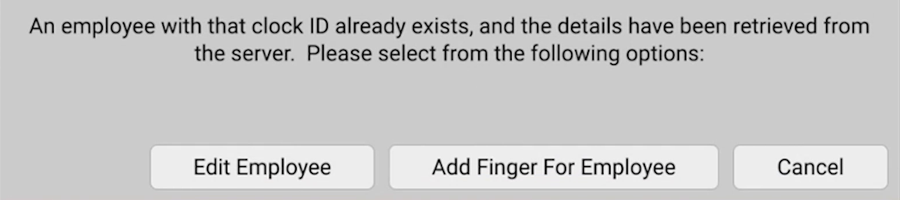
- If the clock number is new, select Finger to enable fingerprint verification, then press OK. Their name stays blank at this point — it’s filled in later when their biotime profile is completed.
- Either way, press Start on the fingerprint enrolment screen.
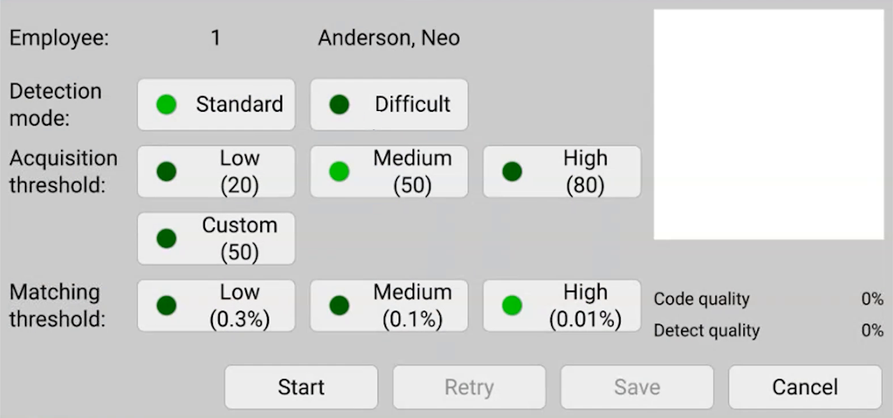
- Have the employee place their finger on the sensor and follow the on-screen prompts (Place finger, Remove finger, Move up, Move down, Press Harder) until Enrolment succeeded! is shown.
- Press Save.
- Select Yes at “Do you wish to add another finger?” to enrol a second finger for the same employee, or No to finish.

- Select No at the next prompt to return to the main menu, then press Save to exit.
Important: Leave Detection mode, Acquisition threshold and Matching threshold on their defaults unless your biotime consultant has advised otherwise — they’re not something to adjust per employee.
A clock number enrolled this way doesn’t need a completed biotime profile first — punches made against it are retained and matched up once the profile is created, so enrolling ahead of a profile being finished won’t lose any clock time.
New employees enrolled at the clock appear in a list when you select New Employee on the Employee Profile page in biotime, ready to complete their profile.
Tips for a good fingerprint enrolment
- Warm the finger, don’t wet it. Dry skin scans poorly — rubbing the finger against the palm adds natural oils, which works better than water.
- Use moderate, flat pressure. Too hard flattens the ridges, too light means they don’t register — a firm, even touch scans best.
- Pick a finger with clear, undamaged ridges. Index fingers work for most people, but a middle finger, ring finger or thumb is often better if it’s less scarred or easier for the employee to hold flat.
- Hold the finger still until prompted to remove it. Lifting off early or moving mid-scan is the most common reason an enrolment comes out poor.
- Enrol a second finger from the other hand. If the primary finger is later injured or bandaged, the employee still has a working backup.
Adding a swipe card
Works the same for a new or existing employee.
- Select Edit Employee.
- Enter the employee’s clock number and press Search.
- Select Swipe Card once to enable it, then select Change underneath it.
- Wave the card or tag in front of the reader when prompted. The screen returns to the employee edit view once it’s read.
- Press Save to finish editing, then No at “Edit another employee?” to return to the main menu.
Adding a PIN
Works the same whether the employee already has a biotime profile or not.
- Select Edit Employee.
- Enter the employee’s clock number and press Search.
- Select PIN once to enable it, then select Change underneath it.
- Enter the desired PIN and press Save.
- Press Save again to finish editing, then No at “Edit another employee?” to return to the main menu.
Setting a PIN from an employee’s profile
A PIN can also be set or changed without visiting the clock, directly from the employee’s profile in biotime.
- Open the employee’s profile and go to the Devices tab.
- In the Access/Validation panel, enter or update the Pin field.
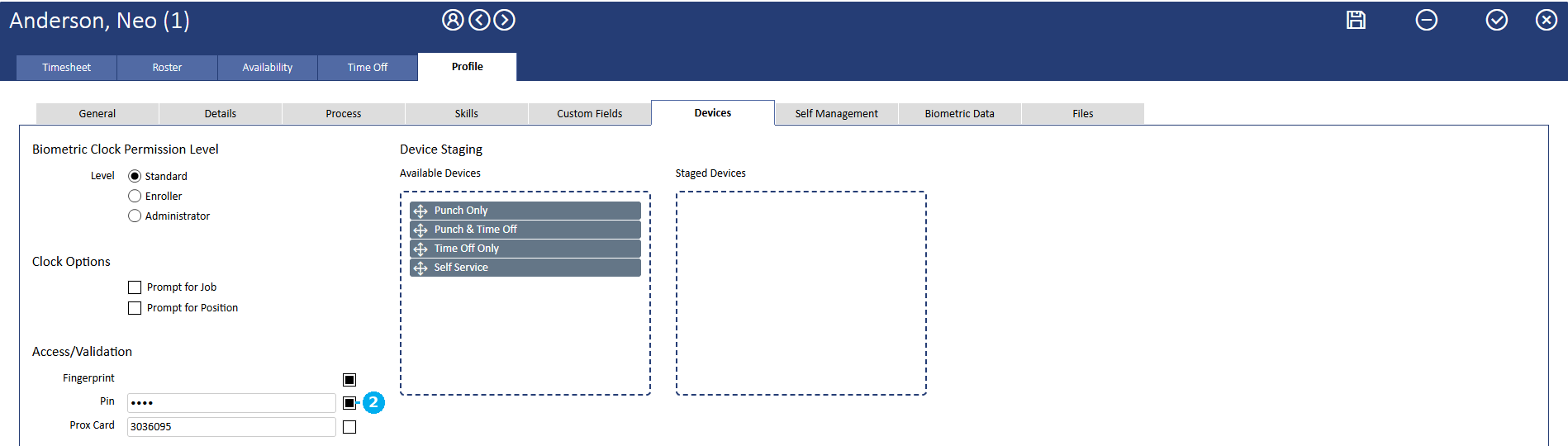
2 the Pin field
- Save the profile.
This pushes the PIN to the clock the same way enrolling one there does — handy when it’s easier to update from biotime than to walk someone through the steps at the bioscan 817 itself.
FAQ
Why does it say “Employee not found” when I search for a clock number?
The clock number entered doesn’t match any employee. Check the Clock Number field on the employee’s record in biotime is correct.
Can an employee have a fingerprint, a swipe card and a PIN all enrolled at once?
Yes. All three can be active for the same employee, and they’ll be asked which to use if more than one is enrolled.
Does an employee need a completed biotime profile before they can be enrolled?
No — enrolling at the clock and completing the profile in biotime can happen in either order. Punches recorded against a clock number are retained and matched up once the profile exists.
Do I need to type in the employee’s name at the clock?
No — for an existing employee it’s pulled from biotime automatically. For a new employee, the name field stays blank until their profile is completed in biotime.
How many fingerprints should be enrolled per employee?
Two is best practice — one from each hand — so there’s a backup if one finger is out of action.
What if a fingerprint just won’t scan well no matter what’s tried?
Some fingers don’t enrol reliably regardless of technique. Enrol a PIN or swipe card for that employee instead — biotime support can advise further if needed, including on detection settings that can help with a specific difficult finger.
Need a hand?
Our support team knows biotime inside out. Send us a message and we’ll get back to you, usually within one business day.
Prefer to call? AU 1300 139 460 · NZ 0800 111 438
From overseas: +61 7 5613 2700 · +64 9 820 3444
Monday to Friday, 8:30am – 5:00pm (AEST/NZST)